 PL
PL EN
ENOur app handles pickup point delivery only. Courier delivery is best configured directly in Shopify settings - Shopify provides built-in tools for managing shipping options, so there’s no need to duplicate this functionality in the app.
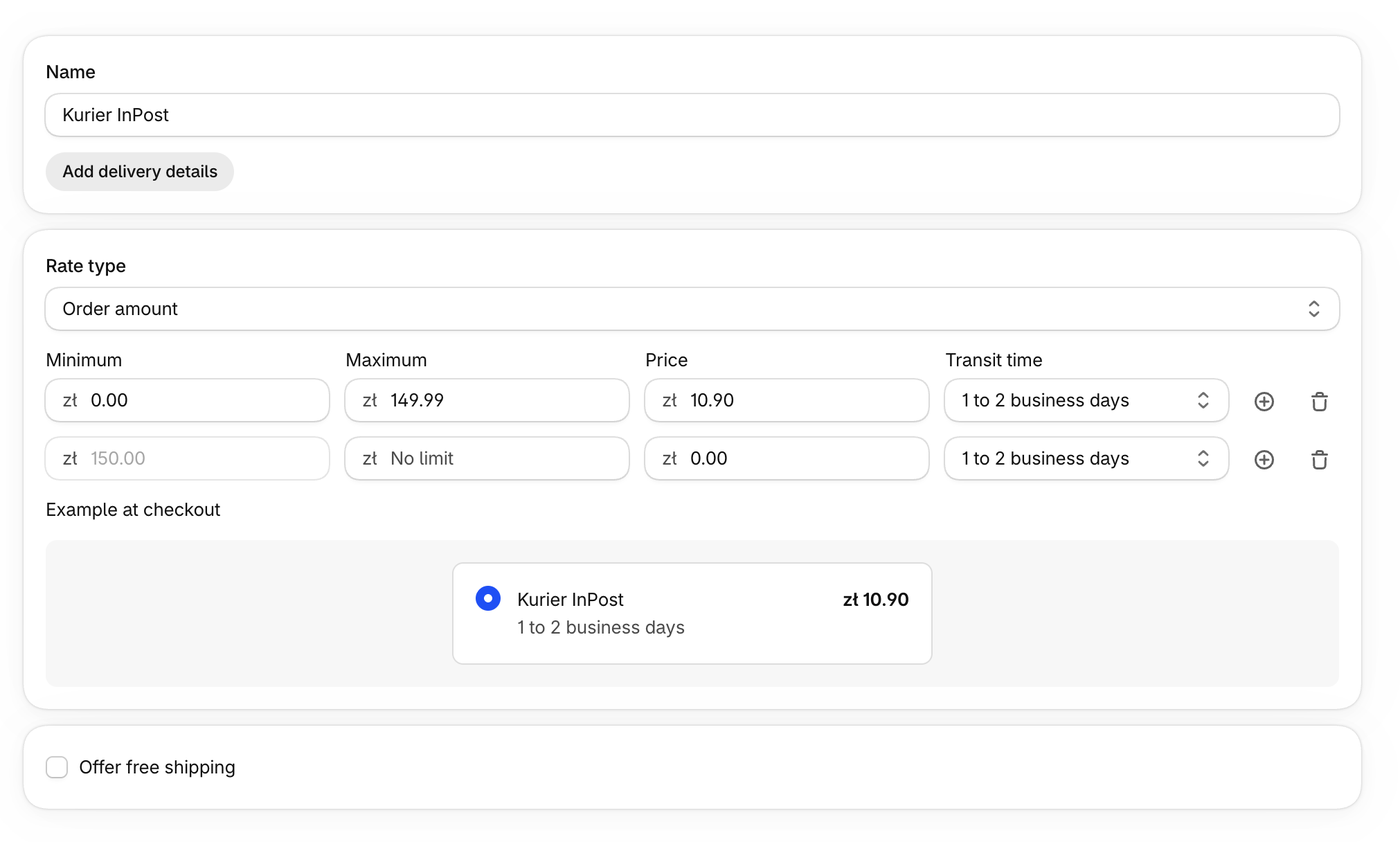
The guide below shows how to add InPost courier delivery priced at e.g. 10.90 zł, free from e.g. 150.00 zł. All it takes is one shipping option with two price tiers: a paid one (up to 149.99 zł) and a free one (from 150.00 zł). Buyers always see one price - depending on the order value.
How to add the shipping option
- Go to Settings → Shipping and Delivery
- Click the General shipping profile
- In the shipping zone that includes Poland, add a new shipping option
- In Name, enter e.g. Kurier InPost
- In Rate type, choose Order amount
- In the first row, set the paid tier: Minimum 0.00 zł, Maximum 149.99 zł, Price 10.90 zł
- Add a second row with the plus icon and set the free tier: Minimum 150.00 zł, Maximum No limit, Price 0.00 zł
- Optionally choose a Transit time - buyers see it under the option name
- Click Done, then save your changes
The finished shipping option looks like this - Example at checkout shows what buyers see in checkout:
The order value tiers count discounts - just like the free shipping threshold in our app. Learn more: Are discounts taken into account for the free shipping threshold?
In the same way, you can add other shipping options such as DPD, DHL, or GLS courier.